出荷作業でありがちな「伝票の転記ミス」や「出荷忘れ」──
こうしたトラブルは、現場作業者・管理者の双方にとって大きな課題です。
今回ご紹介するのは、PythonとExcel VBAを使って実現する「やさしい出荷管理システム」。
クラウド連携も視野に入れつつ、現場のITスキルを問わない運用を目指しました。
課題解決のポイント
- 紙ベースの出荷管理に限界を感じている
- PCスキルにバラつきがあり、操作はできるだけ簡単にしたい
- 転記ミスを減らし、出荷のトレーサビリティを確保したい
システム構成(2フェーズ)
フェーズ1:QRコードの自動生成と印刷(Python+Excel VBA)
- 出荷データ(CSV形式)からPythonでQRコードを一括生成
- Excelテンプレートに製品情報とQRを読み込み、自動レイアウト(VBA)
- A4印刷用の明細レイアウトに整形して、帳票として出力
※印刷様式は現場の作業工程(ピッキング、梱包、ラベル貼りなど)に応じて調整可能です。
フェーズ2:出荷スキャンで履歴管理(クラウド連携)
- 出荷時にQRコードをスキャン
- Googleスプレッドシートなどクラウド台帳に自動記録(GASや連携ツールにて)
- 出荷履歴や進捗の「見える化」が可能に
活用例:こんな現場で使えます
- 小規模な倉庫・出荷場での出荷確認リスト
- 手作業中心の現場で「帳票+ラベル」兼用出力
- クラウド管理(Googleスプレッドシートなど)とQRによる連携を簡便に導入
導入メリット
- 転記ミスの防止と履歴の可視化
- 手作業削減による作業時間の短縮
- 現場に応じたUIカスタマイズが可能
- Python+Excelだけで導入できるため、初期費用を抑えられる
VBAコード紹介:CSV読み込みとQRコード配置
Sub 読み込んで整形する()
    Dim filePath As String
    Dim ws As Worksheet
    Dim csvLine As String
    Dim arr As Variant
    Dim rowNum As Long
    Dim folderPath As String
    Dim lastRow As Long
    Dim productID As String
    Dim imgPath As String
    Dim i As Long

    Set ws = ThisWorkbook.Sheets("製品一覧")
    ws.Cells.ClearContents

    ' QRコード画像を削除
    Dim sh As Shape
    For Each sh In ws.Shapes
        If Left(sh.Name, 3) = "QR_" Then sh.Delete
    Next sh

    filePath = Application.GetOpenFilename("CSVファイル (*.csv), *.csv")
    If filePath = "False" Then Exit Sub

    Open filePath For Input As #1
    rowNum = 2
    Do Until EOF(1)
        Line Input #1, csvLine
        arr = Split(csvLine, ",")
        If rowNum > 2 Then
            ws.Cells(rowNum, 1).Resize(1, UBound(arr) + 1).Value = arr
        End If
        rowNum = rowNum + 1
    Loop
    Close #1

    ' ヘッダーを設定
    ws.Range("A1").Value = "出荷明細表"
    ws.Range("A1:E1").Merge
    With ws.Range("A1")
        .Font.Bold = True
        .Font.Size = 14
        .HorizontalAlignment = xlCenter
    End With

    ws.Range("A2").Value = "製品ID"
    ws.Range("B2").Value = "商品名"
    ws.Range("C2").Value = "納品先"
    ws.Range("D2").Value = "日付"
    ws.Range("A2:D2").Font.Bold = True

    folderPath = ThisWorkbook.Path & "\qr_images\"
    lastRow = ws.Cells(ws.Rows.Count, 1).End(xlUp).Row

    ws.Columns("E").ColumnWidth = 12
    For i = 3 To lastRow
        ws.Rows(i).RowHeight = 75
    Next i

    For i = 3 To lastRow
        productID = ws.Cells(i, 1).Value
        If productID <> "" Then
            imgPath = folderPath & productID & ".png"
            If Dir(imgPath) <> "" Then
                With ws.Pictures.Insert(imgPath)
                    .Name = "QR_" & productID
                    .Top = ws.Cells(i, 5).Top + 5
                    .Left = ws.Cells(i, 5).Left + 5
                    .Height = 60
                    .Placement = xlMoveAndSize
                End With
            End If
        End If
    Next i

    With ws.Range("A2:E" & lastRow)
        .Borders.LineStyle = xlContinuous
        .Borders.Weight = xlThin
    End With

    MsgBox "QRコードの貼り付けが完了しました。"
End Sub

Sub 印刷する()
    Dim ws As Worksheet
    Set ws = ThisWorkbook.Sheets("製品一覧")
    Dim lastRow As Long
    lastRow = ws.Cells(ws.Rows.Count, 1).End(xlUp).Row

    With ws.PageSetup
        .PrintArea = "A1:E" & lastRow
        .Orientation = xlPortrait
        .PaperSize = xlPaperA4
        .Zoom = False
        .FitToPagesWide = 1
        .FitToPagesTall = False
        .CenterHorizontally = True
    End With

    ws.PrintOut
End Sub

Sub PDF印刷()
    Dim ws As Worksheet
    Set ws = ThisWorkbook.Sheets("製品一覧")
    Dim lastRow As Long
    lastRow = ws.Cells(ws.Rows.Count, 1).End(xlUp).Row

    With ws.PageSetup
        .PrintArea = "A1:E" & lastRow
        .Orientation = xlPortrait
        .PaperSize = xlPaperA4
        .Zoom = False
        .FitToPagesWide = 1
        .FitToPagesTall = False
        .CenterHorizontally = True
    End With

    Dim pdfPath As String
    pdfPath = ThisWorkbook.Path & "\出荷明細表_" & Format(Now, "yyyymmdd_HHmmss") & ".pdf"

    ws.ExportAsFixedFormat Type:=xlTypePDF, Filename:=pdfPath, Quality:=xlQualityStandard
    MsgBox "PDF出力が完了しました:" & vbCrLf & pdfPath, vbInformation
End Sub
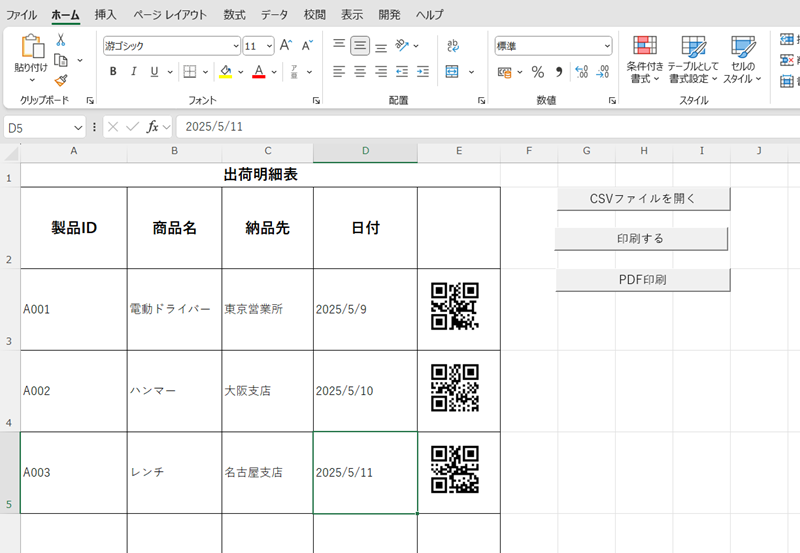
このまま印刷も可能ですし、作業内容にあわせてラベルごとや、A4用紙1枚ごとに印刷内容をカスタマイズするとよいでしょう。なお、今回はシンプルに作ることを目的に製作したのでQRコードには、製品IDのみ含まれています。
Pythonのコード紹介:QRコードの作成
import qrcode
import pandas as pd
import os

csv_path = "sampledata.csv"
output_dir = "qr_images"
os.makedirs(output_dir, exist_ok=True)

df = pd.read_csv(csv_path, encoding="shift_jis")

for idx, row in df.iterrows():
    data = row["製品ID"]

    # ✅ 空白やNaNをスキップ
    if pd.notna(data) and str(data).strip():
        img = qrcode.make(data)
        img.save(os.path.join(output_dir, f"{data}.png"))

print("QRコード生成完了")
QRコードの生成には、qrcode,pillowの2つのライブラリが必要です。以下のコマンドで導入可能です。
pip install qrcode[pil]
pip install Pillow
出荷明細を見ながら梱包、出荷の際にバーコードを読み込めが完了
バーコードで読み取ったデータをグーグルスプレッドなどに反映してやれば発送作業は完了です。
まとめ:まずは小さく始めてみませんか?
このシステムは、特別な業務システムや有料ソフトを使わずに導入できます。
現場にあわせてカスタマイズも可能なので、ぜひ一度お試しください。